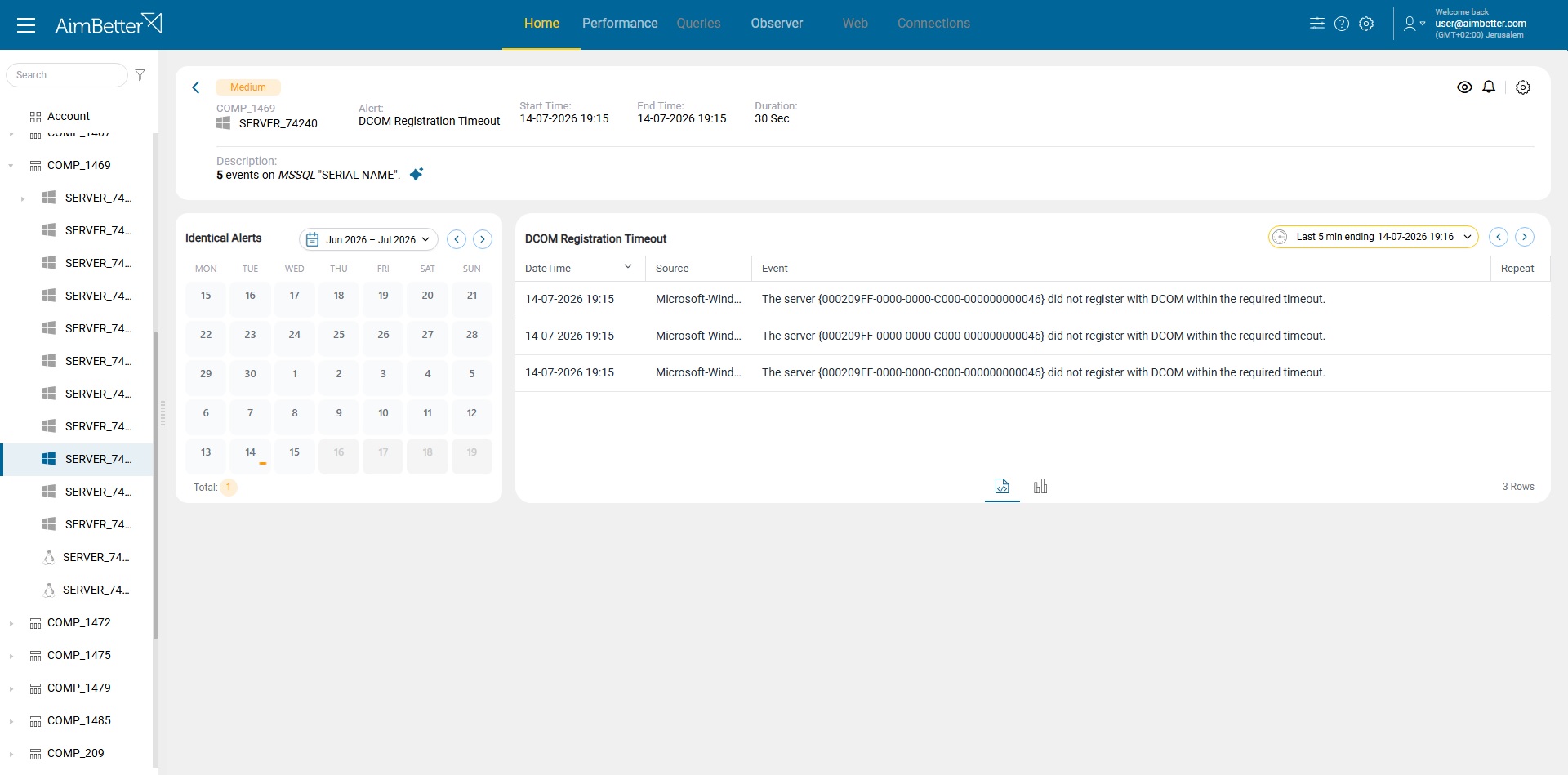
A DCOM Registration Timeout occurs on Windows hosts when a Windows application or component fails to register with the Distributed Component Object Model (DCOM) within the required time. As a result, applications or services that depend on that component may fail to start correctly, become unavailable, or experience intermittent failures.
Monitoring this event is important because it often serves as an early warning of application or infrastructure issues before users begin experiencing outages or delays.
Monitoring DCOM Registration Timeout becomes especially important in these scenarios:
- Windows application servers hosting business-critical applications that rely on Windows services or COM components
- Systems that automate processes such as document generation, reporting, or scheduled tasks
- Servers running enterprise applications, APIs, or background services where availability is critical
- Environments where application startup reliability is important
- Windows hosts after updates, patches, or application deployments, where component initialization issues may occur
A recurring DCOM Registration Timeout usually indicates that an application or one of its dependencies is unable to initialize properly.
Possible causes
1. Slow or Hung Application Startup
The application or COM component takes too long to initialize, causing Windows to exceed the DCOM registration timeout.
Problem identification:
- Multiple Event ID 10010 events for the same application
- Users report intermittent startup failures or unavailable services
- The application eventually starts after a delay—or fails to start
- Event Viewer → Open Windows Logs > System and Application and look for Event ID 10010 details, including the affected application or CLSID.
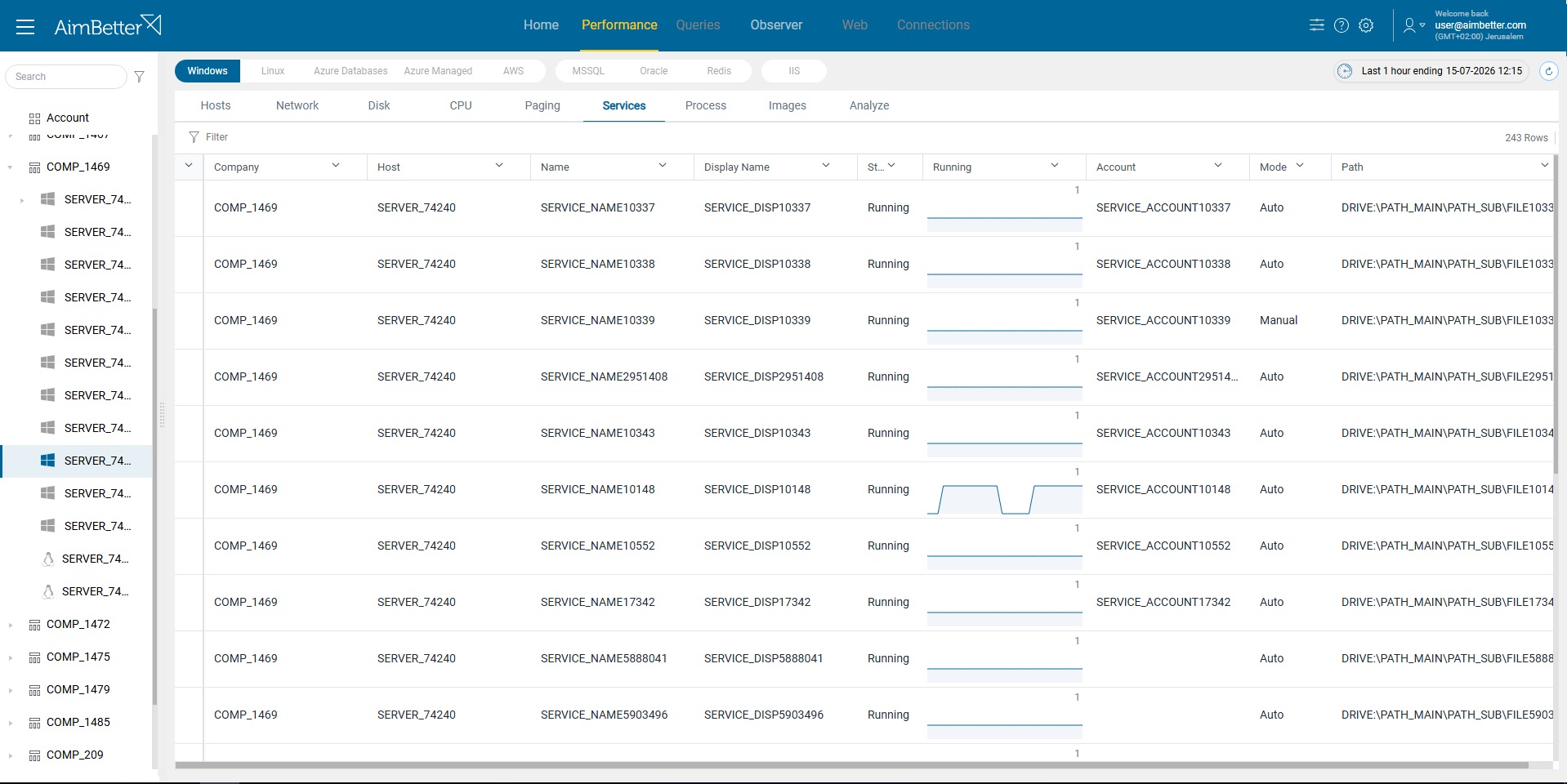
- Services Console (services.msc) → Check whether the related Windows service is stuck in “Starting”, takes a long time to start, or frequently restarts.
- Task Manager → Check whether the related process remains in a high CPU, high memory, or “Not Responding” state during startup.
- Reliability Monitor (
perfmon /rel) → Review application failures, crashes, or failed updates around the time of the DCOM events.
Recommended action :
- Review the Application and System Event Logs for related errors.
- Check whether the application service is hanging during startup.
- Update or repair the application if the issue is caused by software defects.
2. High Windows Host Resource Utilization
Excessive CPU, memory, or disk usage delays application initialization, preventing DCOM registration from completing in time.
Problem identification:
- High CPU utilization or memory pressure on the Windows host
- Elevated disk latency or storage bottlenecks
- DCOM events occur during periods of heavy system load
- Task Manager → Check the Processes and Performance tabs for high CPU, memory, disk, or network usage.
- Resource Monitor (
resmon) → Identify processes consuming CPU, memory, disk I/O, or causing disk queue delays. - Performance Monitor (
perfmon) → Review historical performance counters such as Processor %, Available Memory, and Physical Disk latency. - Event Viewer → Check Windows Logs > System for related warnings such as disk, service, or resource-related events.
Recommended action :
- Review CPU, Memory, and Disk performance around the event time.
- Identify resource-intensive processes.
- Reduce server load or increase available resources if necessary.
3. Dependency or Windows Service Startup Failure
The application is waiting for another Windows service, database connection, or external resource that is unavailable or slow to respond.
Problem identification:
- Required Windows services are stopped, delayed, or repeatedly restarting
- Related service errors appear before Event ID 10010
- Application functionality is affected intermittently
- Services Console (
services.msc) → Verify that required services are running and check their startup type and status. - Service Dependencies → Open the service properties and review the Dependencies tab to identify required services that may be unavailable.
- Event Viewer → Review Windows Logs > System for Service Control Manager events (source: Service Control Manager) related to failed or delayed services.
- Command Prompt / PowerShell → Use commands such as
sc queryorGet-Serviceto check service status and identify stopped or failed services.
Recommended action :
- Verify that all dependent Windows services are running.
- Check connectivity to databases, file shares, and external systems.
- Review service startup order and dependency configuration.
4. Recent Windows or Application Changes
Windows updates, application upgrades, security software, or configuration changes can affect component registration or increase startup time.
Problem identification:
- The problem started after a Windows update, patch, or application deployment
- Event ID 10010 was not previously observed
- Multiple Windows hosts show similar behavior after a change
Recommended action :
- Review recent Windows updates and application changes.
- Check installation and deployment logs.
- Reconfigure or roll back the affected component if necessary.
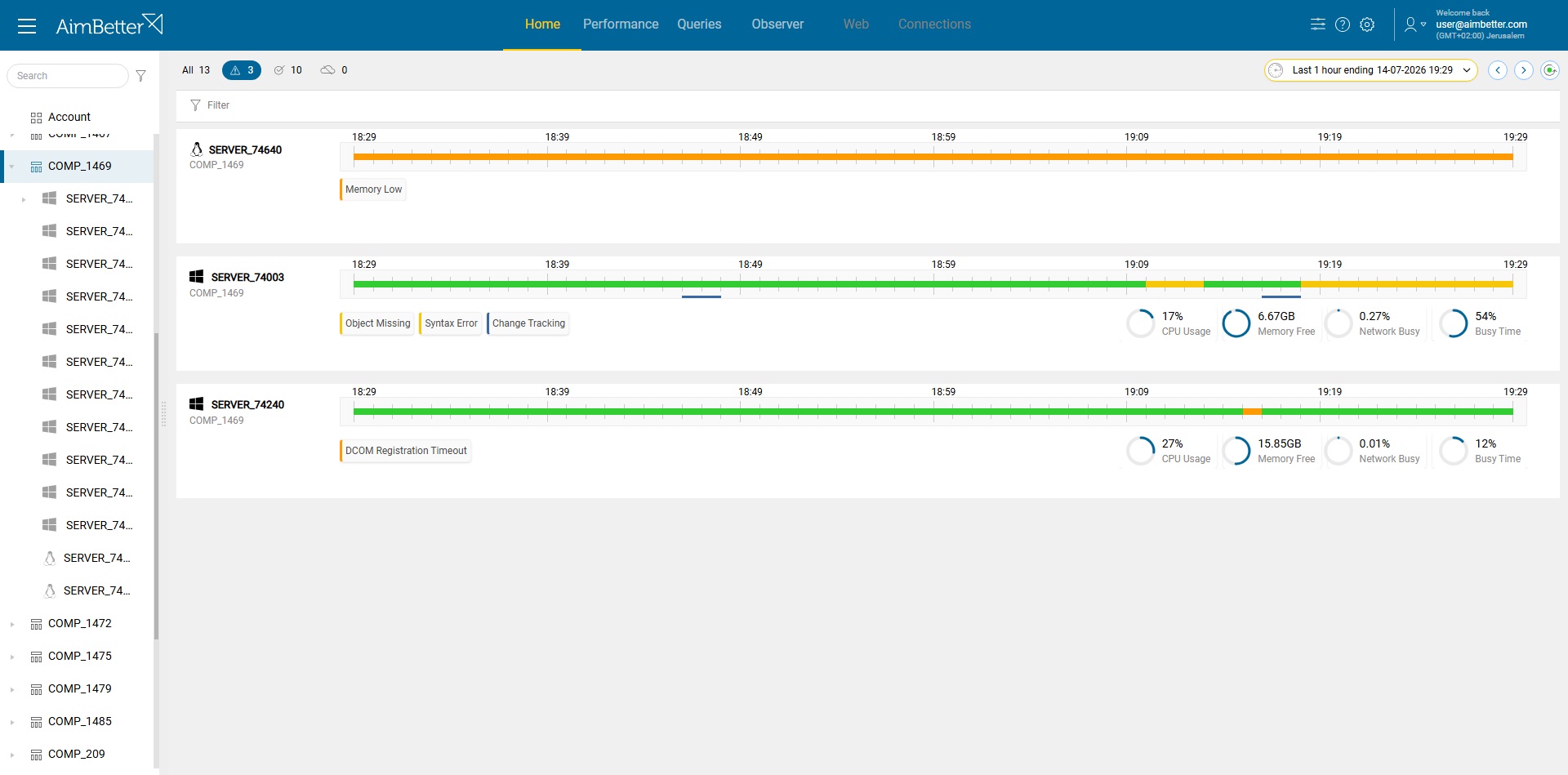
By detecting DCOM Registration Timeout events on Windows hosts as soon as they occur, administrators can investigate the underlying issue before it impacts application availability or critical business processes. Correlating this alert with Windows performance metrics, service status, and related event logs helps identify the root cause faster and reduces troubleshooting time.